
- Close all applications including Outlook and the Shoretel Communicator
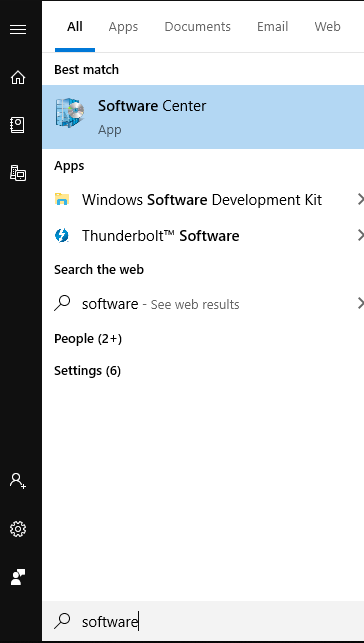
- Click on your Windows Start button, type software in the search bar, and select Software Center
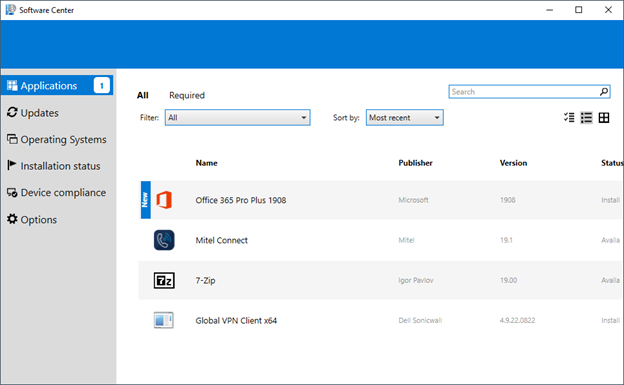
- Once Software Center opens, click on "Mitel Connect"
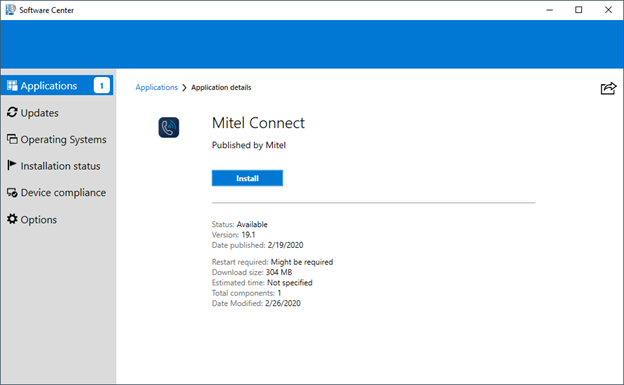
- Click on the Install Button
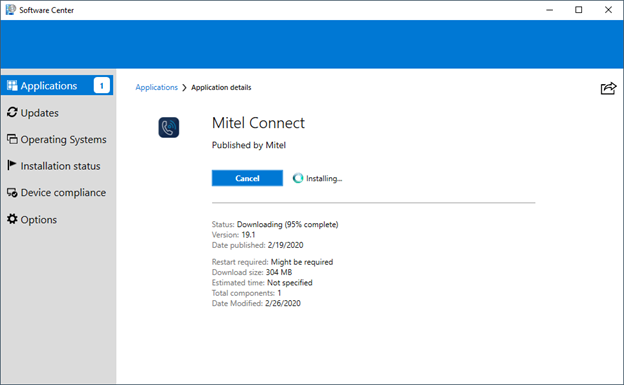
- The status will change to "Installing..." while the Shoretel software is removed and the Mitel software is installed
- Click on the Restart button when it is presented
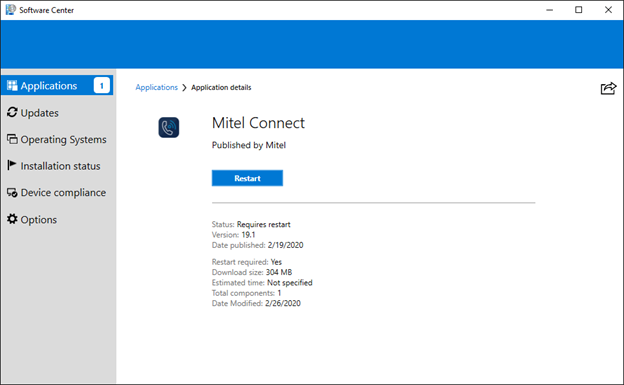
- After the restart, find the "Mitel Connect" icon on your desktop and launch the software

- After the restart, find the "Mitel Connect" icon on your desktop and launch the software
- At the Mitel login window, click on "Show advanced" and then click the box next to "Use Windows Credentials"
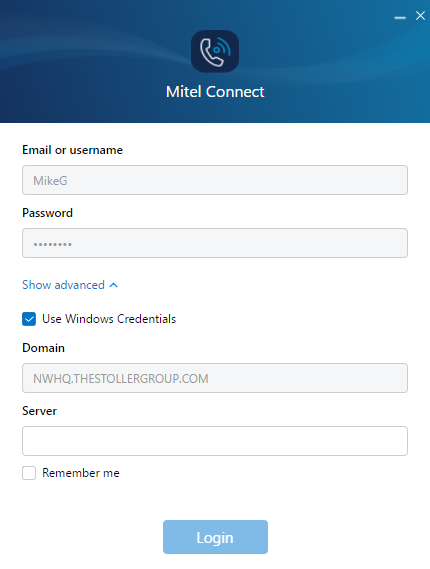
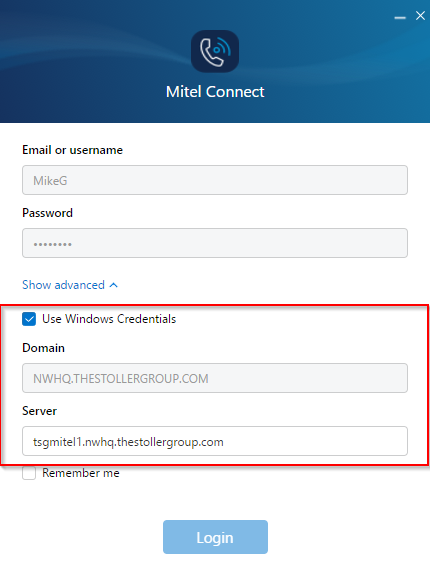
- Now uncheck the box next to "Use Windows Credentials" and then recheck the box again. This seems odd, but is required to allow all settings to take affect. Make sure that the information matches what is in the red box below before proceeding
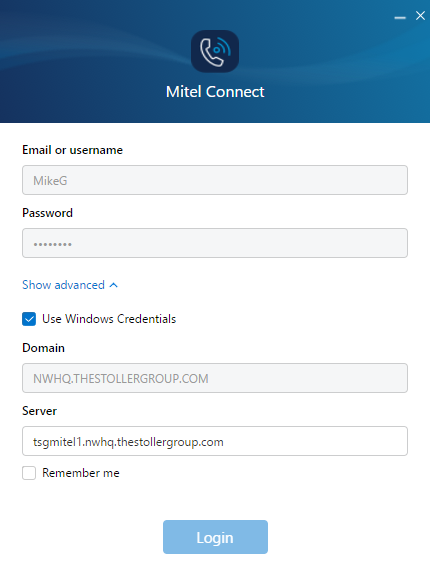
- Click the login button to enter the software
0 Comments